
Call Service
Action → Plugin → TaskerHA → HA Call Service
Calls any Home Assistant service from a Tasker task.
How to use
- In Tasker, open a task and tap + → Plugin → TaskerHA → HA Call Service.
- Tap the pencil icon to open the configuration.
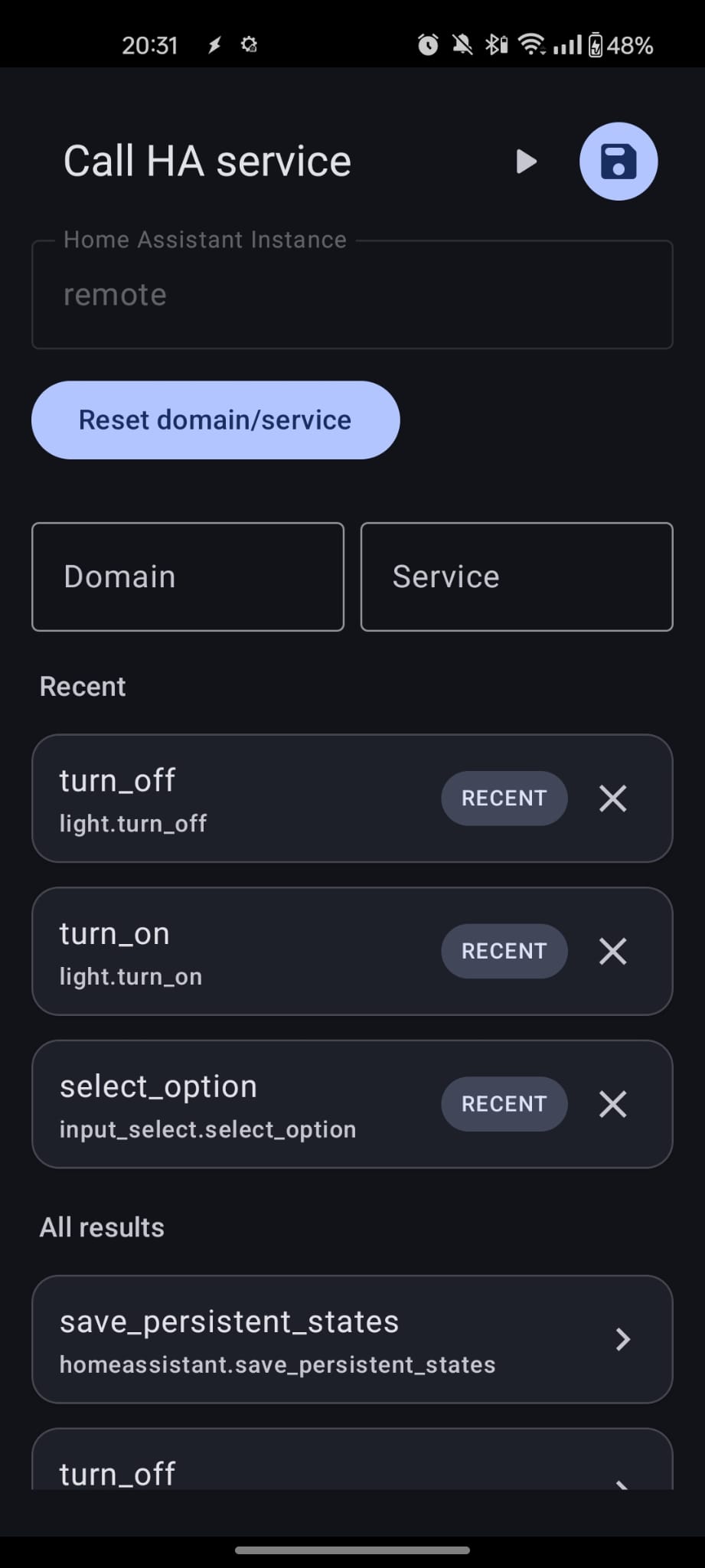
- Pick a domain to narrow down the list, then select a service.
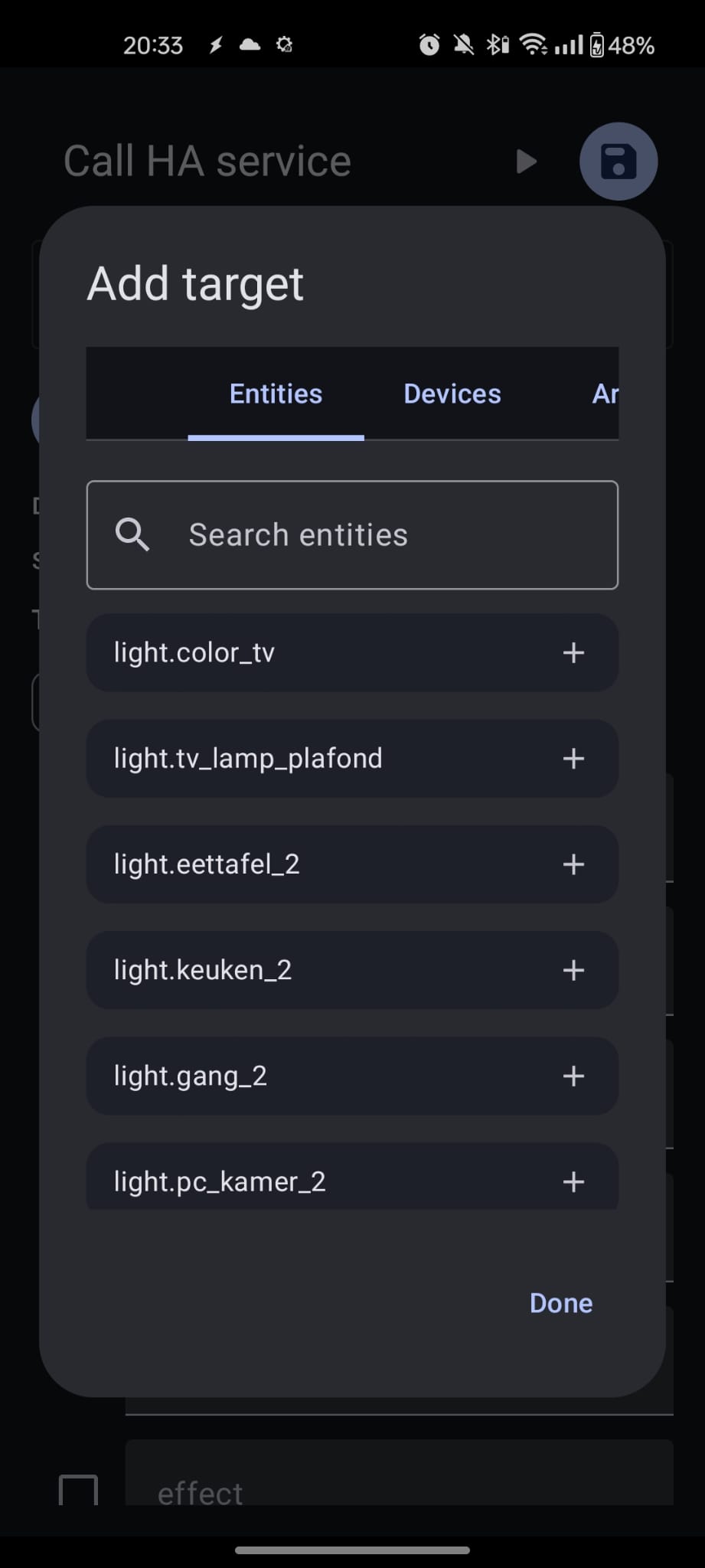
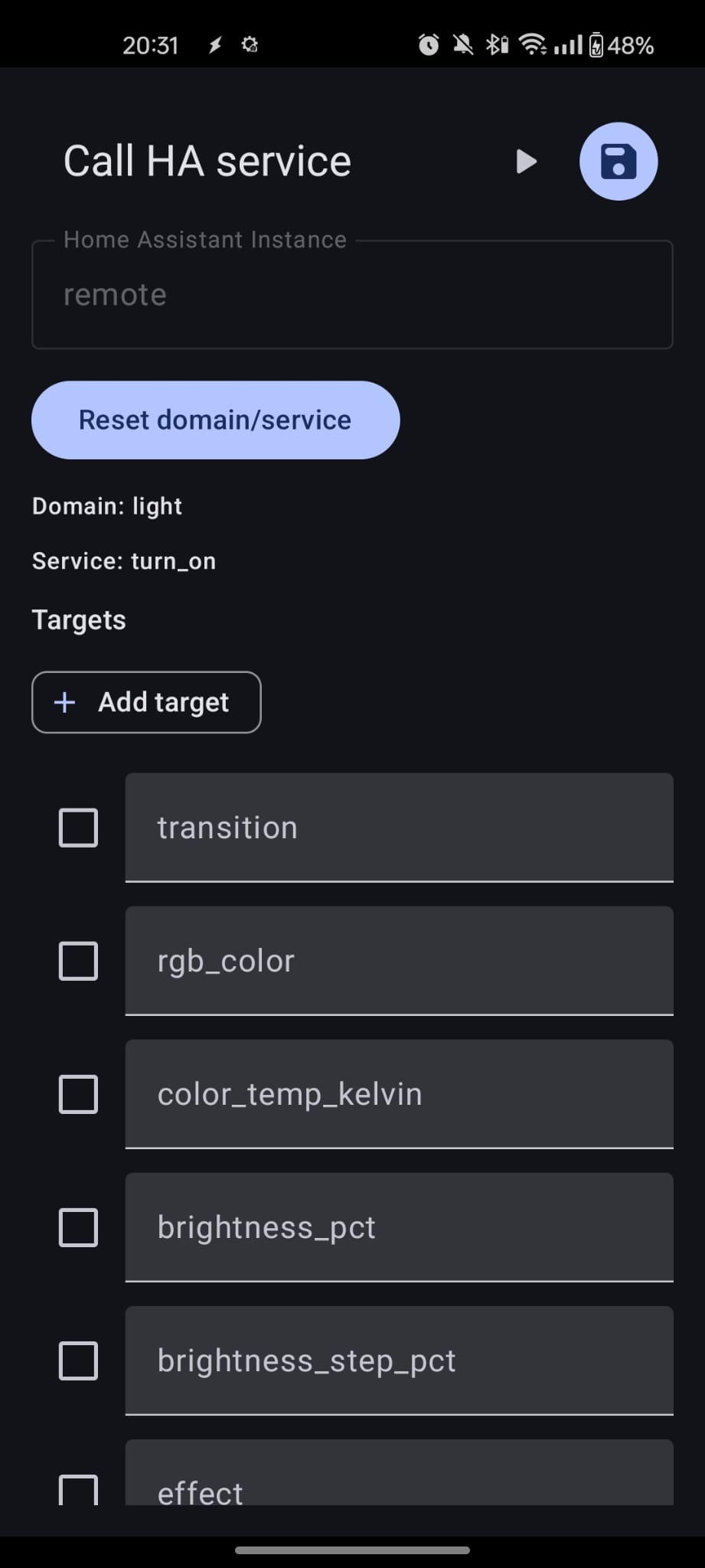
- Fill in any required fields. If an
entity_idis needed, an entity picker with domain filtering and fuzzy search will appear. - Optional data fields (e.g.
brightness,transition) can be toggled on or off with checkboxes. Fields that are turned off are not sent to Home Assistant at all.
Tasker variables
You can use Tasker variables (anything starting with %) in any text field. They are substituted before the service call is made.
Example — Turn on a light
| Field | Value |
|---|---|
| Service | light.turn_on |
| Entity | light.living_room |
| brightness | 200 |
Variables set after the action
| Variable | Description |
|---|---|
%ha_data | Full API response from Home Assistant (JSON). Usually contains the updated entity state, but this is not guaranteed by HA. |
%err | Error code. 0 means success. See Error codes below. |
%errmsg | Human-readable error message, often followed by a Java exception for details. |
Error codes
| Code | Description |
|---|---|
0 | No error. |
1 | Cannot connect to Home Assistant. The app could not reach the host — check your URL, network, and token. |
2 | Invalid input. Domain or service field is empty. |
3 | Service call failed. HA was reachable but rejected the call. Check %errmsg for details. |
9999 | Unknown error. Check %errmsg for the Java exception. |
Continue after error
By default, an error will also fail the Tasker task. Enable Continue after error on the action if you want to handle errors yourself by reading %err.