
Trigger State Change
Profile → Plugin → TaskerHA → HA On Trigger State
Fires a Tasker profile whenever an entity (or a specific attribute) changes state in Home Assistant. Uses the WebSocket connection for real-time updates.
WebSocket required
Enable the WebSocket toggle in the TaskerHA app. Without it this profile will never fire.
How to use
- In Tasker, create a new profile and tap Plugin → TaskerHA → HA On Trigger State.
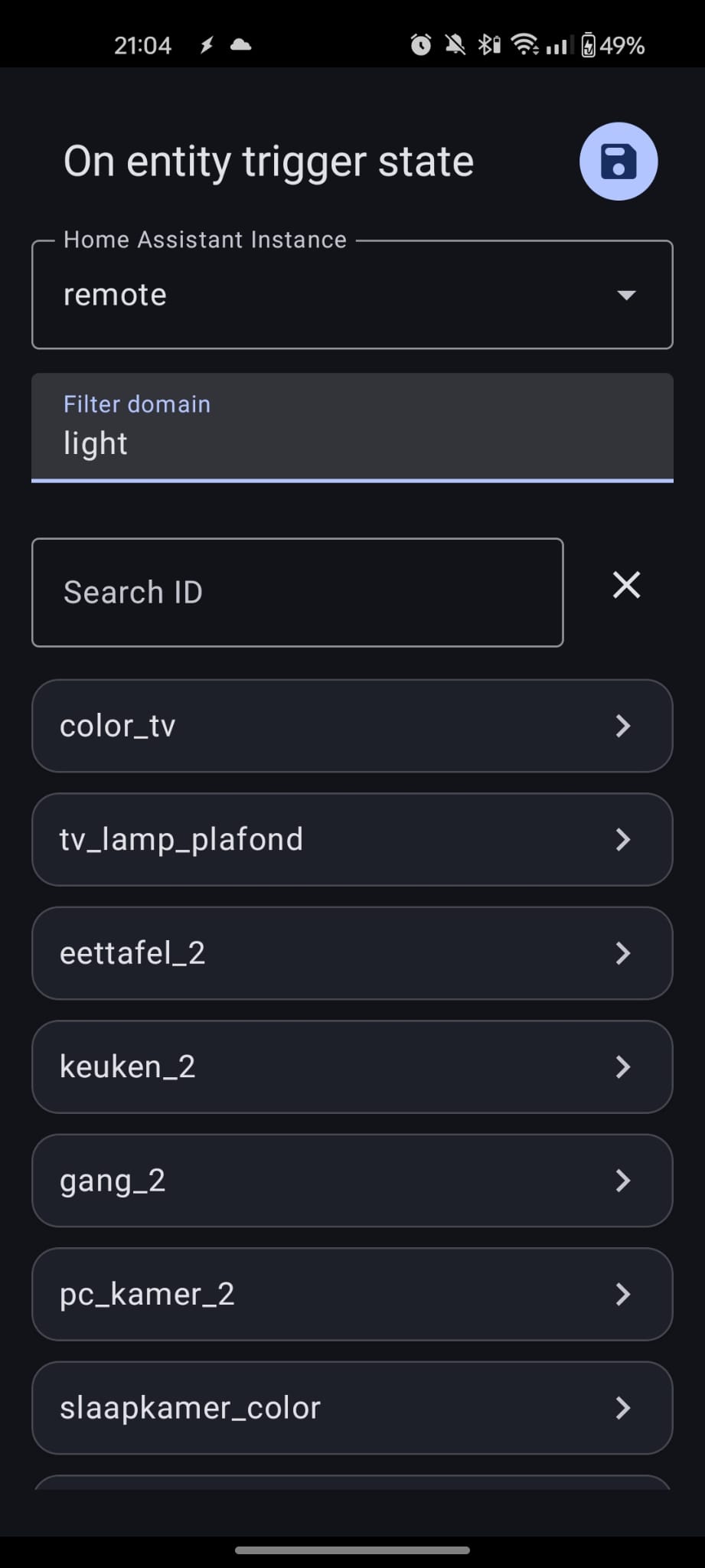
- Use the entity picker to add one or more entities (supports domain filtering and fuzzy search).
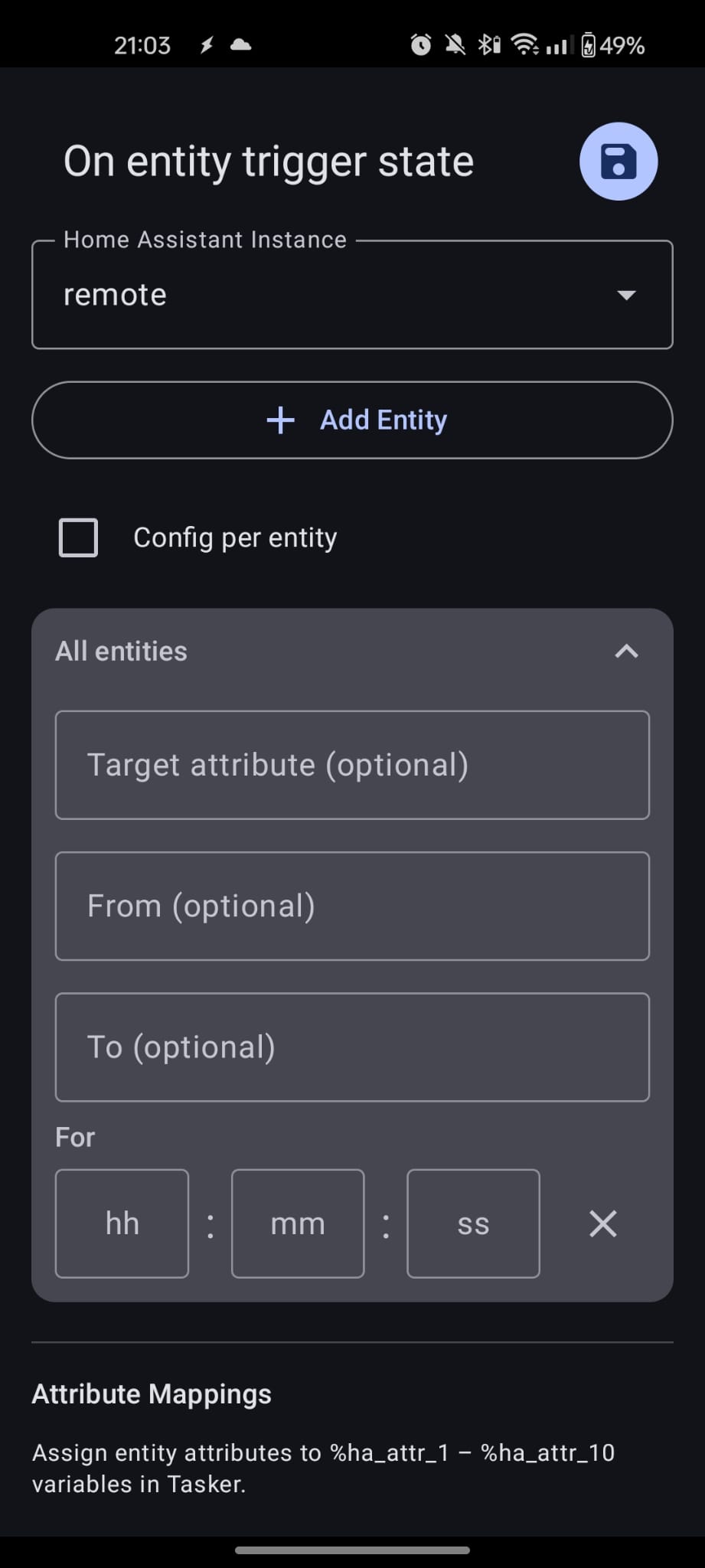
- Optionally configure the filter fields below.
Filter fields
| Field | Description |
|---|---|
| From | Only fire when the previous state matches this value (e.g. off). Leave empty to match any state. |
| To | Only fire when the new state matches this value (e.g. on). Leave empty to match any state. |
| For | Only fire if the entity was in the previous state for at least this duration (HH:MM:SS). |
| Target attribute | Watch a specific attribute instead of the main state (e.g. brightness, color_mode). When set, %ha_from and %ha_to contain the attribute values, not the entity state. |
%ha_attr_1–%ha_attr_10You can use Tasker variables in any filter field.
Multiple entities
Add multiple entities to a single profile. All are monitored over a single shared WebSocket subscription. Use %ha_entity in your task to determine which one fired.
Config per entity
By default all filter settings apply to every entity equally. Toggle Config per entity to give each entity its own From, To, For, and Target attribute settings.
Attribute variable mapping
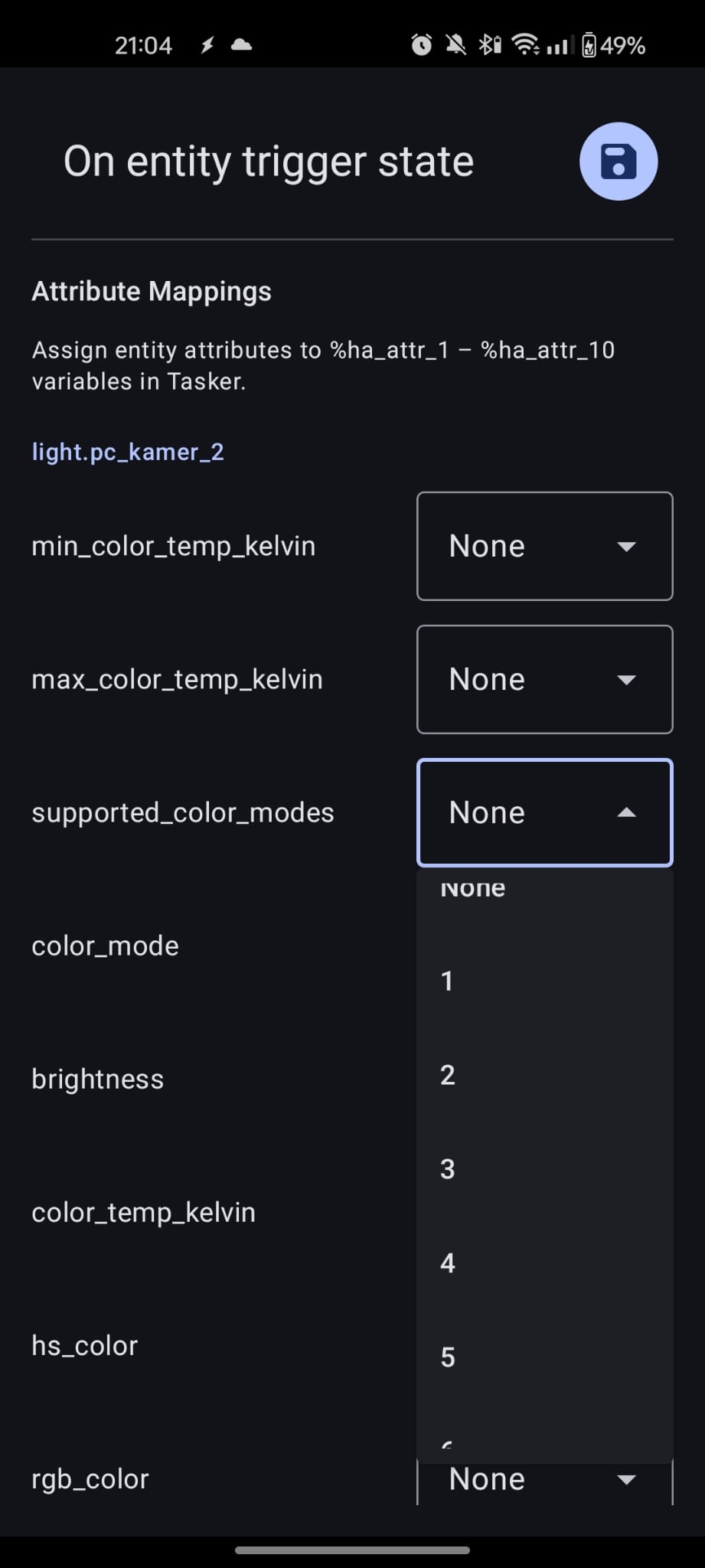
Map specific attribute values to fixed Tasker variables %ha_attr_1 through %ha_attr_10, so you don't have to parse %ha_attrs JSON every time.
- Tap Load attributes to fetch the current attribute list from Home Assistant.
- Attributes shared across all configured entities appear under Shared; entity-specific ones appear under each entity.
- Assign a slot number (1–10). After the profile fires,
%ha_attr_Ncontains that attribute's value.
Variables set when the profile fires
| Variable | Description |
|---|---|
%ha_entity | entity_id of the entity that triggered the profile. |
%ha_from | Previous state of the entity (e.g. off). When a Target attribute is set, contains the previous attribute value instead. |
%ha_to | New state of the entity (e.g. on). When a Target attribute is set, contains the new attribute value instead. |
%ha_for | How long the entity was in the previous state (HH:MM:SS). Empty if not applicable. |
%ha_entities | Comma-separated list of all entity IDs configured in this profile. |
%ha_attrs | JSON object of all attributes on the entity for the new state. |
%ha_attr_1–%ha_attr_10 | Values of attributes mapped via Attribute variable mapping. Only populated for slots you configured. |
%ha_raw | Raw JSON of the full state-change event from Home Assistant. |
%err | Error code. 0 means no error. |
%errmsg | Human-readable error message, often followed by a Java exception for details. |
Error codes
| Code | Description |
|---|---|
0 | No error. |
9999 | Unknown error. Check %errmsg for the Java exception. |
Examples
Fire when the front door opens:
| Field | Value |
|---|---|
| Entity | binary_sensor.front_door |
| From | off |
| To | on |
React when a light's color mode changes:
| Field | Value |
|---|---|
| Entity | light.living_room |
| Target attribute | color_mode |
%ha_from will be the old color mode (e.g. color_temp), %ha_to will be the new one (e.g. xy).
Map brightness to a variable:
In Attribute variable mapping, assign brightness to slot 1. After the profile fires, %ha_attr_1 contains the current brightness without any JSON parsing.