
Send Message to HA
Action → Plugin → TaskerHA → HA Send Message Back
Fires an event from Tasker to Home Assistant, allowing your HA automations to react to things happening on your phone.
How to use
- In Tasker, open a task and tap + → Plugin → TaskerHA → HA Send Message Back.
- Set a Type — a label that HA automations can filter on.
- Optionally set a Message — additional data to pass along.
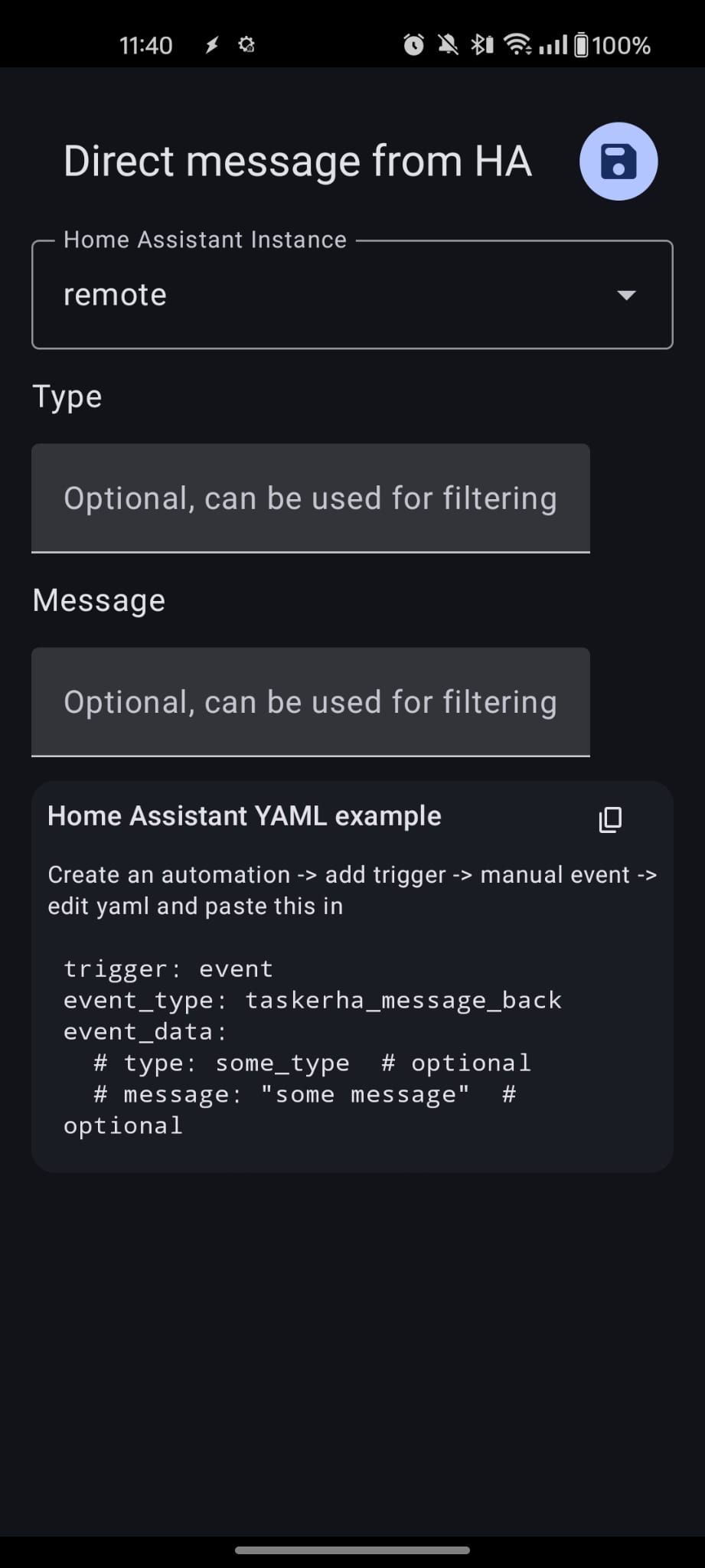
You can use Tasker variables in both fields.
If you configure a type/message filter in your HA automation, the values sent from Tasker must match exactly for the automation to fire. Both sides act as filters — leave a field empty on either end to match anything.
Receiving the message in Home Assistant
There are two ways to listen for this in Home Assistant, depending on whether you have the companion integration installed.
With the companion integration (recommended)
Use the TaskerHA Companion device trigger in an automation. This gives you a proper UI with optional type and message filter fields — no YAML required.
- Create a new automation in HA.
- Add a trigger → Device → select your TaskerHA Companion device.
- Trigger type: Message received from TaskerHA.
- Optionally fill in Type filter and/or Message filter to only fire for specific messages.
Without the companion integration
Listen for the taskerha_message_back event manually:
trigger:
  - trigger: event
    event_type: taskerha_message_back
    event_data:
      type: this_automation      # optional filter
      message: some_message      # optional filter
Leave event_data empty (or omit it) to fire on any taskerha_message_back event.
Example — Trigger a specific HA automation
In Tasker:
| Field | Value |
|---|---|
| Type | this_automation |
| Message | some_message |
In Home Assistant — using the raw event approach:
trigger:
  - trigger: event
    event_type: taskerha_message_back
    event_data:
      type: this_automation
      message: some_message
Variables set after the action
| Variable | Description |
|---|---|
%ha_type | The type value that was sent. |
%ha_message | The message value that was sent. |
%rawJson | Raw JSON response from the event. |
%err | Error code. 0 means success. See Error codes below. |
%errmsg | Human-readable error message, often followed by a Java exception for details. |
Error codes
| Code | Description |
|---|---|
0 | No error. |
1 | Cannot connect to Home Assistant. WebSocket may not be connected. |
9999 | Unknown error. Check %errmsg for the Java exception. |