
Backup & Restore
The Backup & Restore feature lets you export all your TaskerHA settings to a single file and restore them on another device or after a reinstall.
What is included in a backup
| Data | Included |
|---|---|
| Instances (URLs, tokens, local URL / WiFi settings) | ✅ Yes |
| State change trigger subscriptions | ✅ Yes |
| Settings (request timeout, log levels) | ✅ Yes |
| Client certificates (mTLS) | ❌ No — see note below |
Client certificates
Client certificates are managed by Android's secure KeyChain system and cannot be exported by any app. After restoring a backup you will need to re-import the certificate on the new device and re-select it in the instance settings.
Creating a backup
- Open the TaskerHA app.
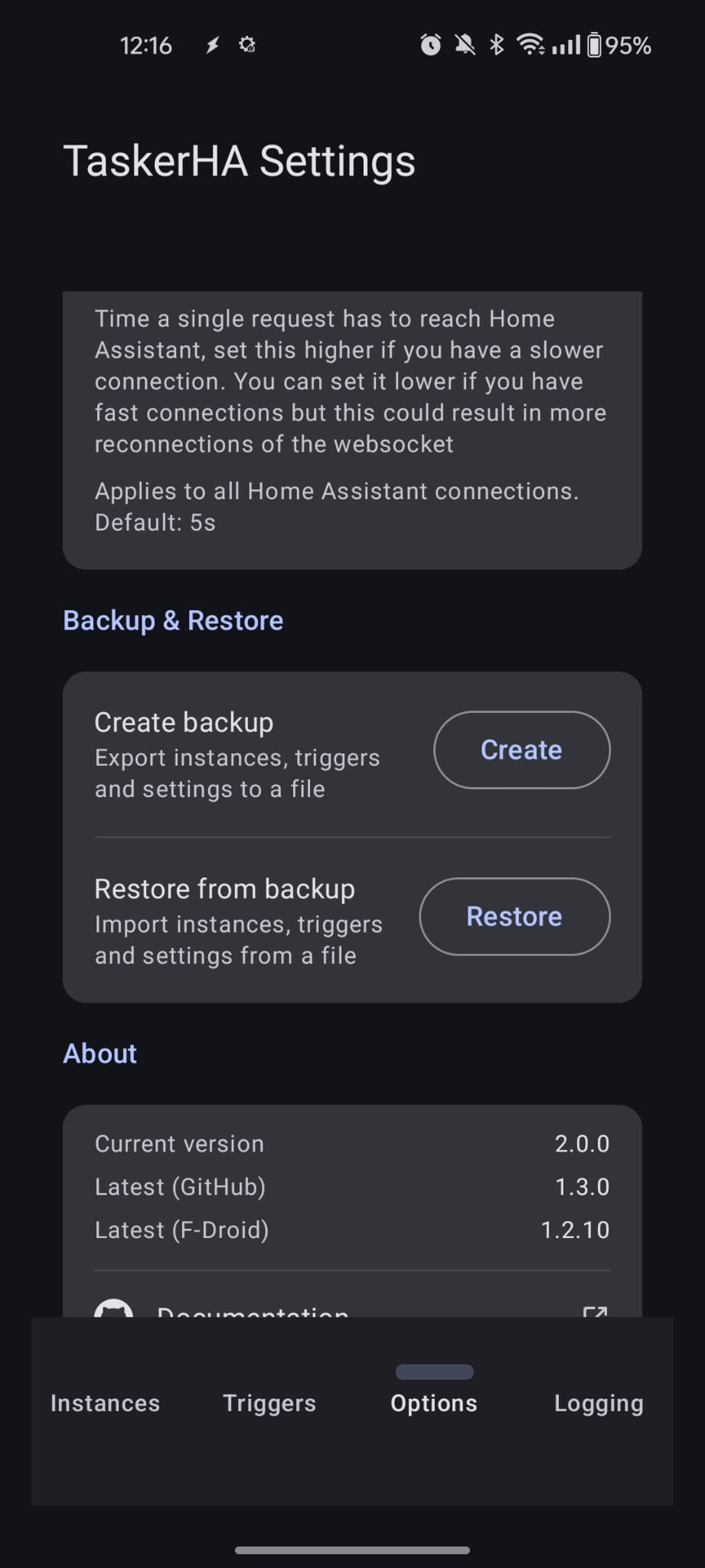
- Go to the Options tab.
- Under Backup & Restore, tap Create.
- Optionally enter a password to encrypt the file.
- Tap Create & Share — the Android share sheet opens so you can save the file to Google Drive, send it via WhatsApp, or save it locally.
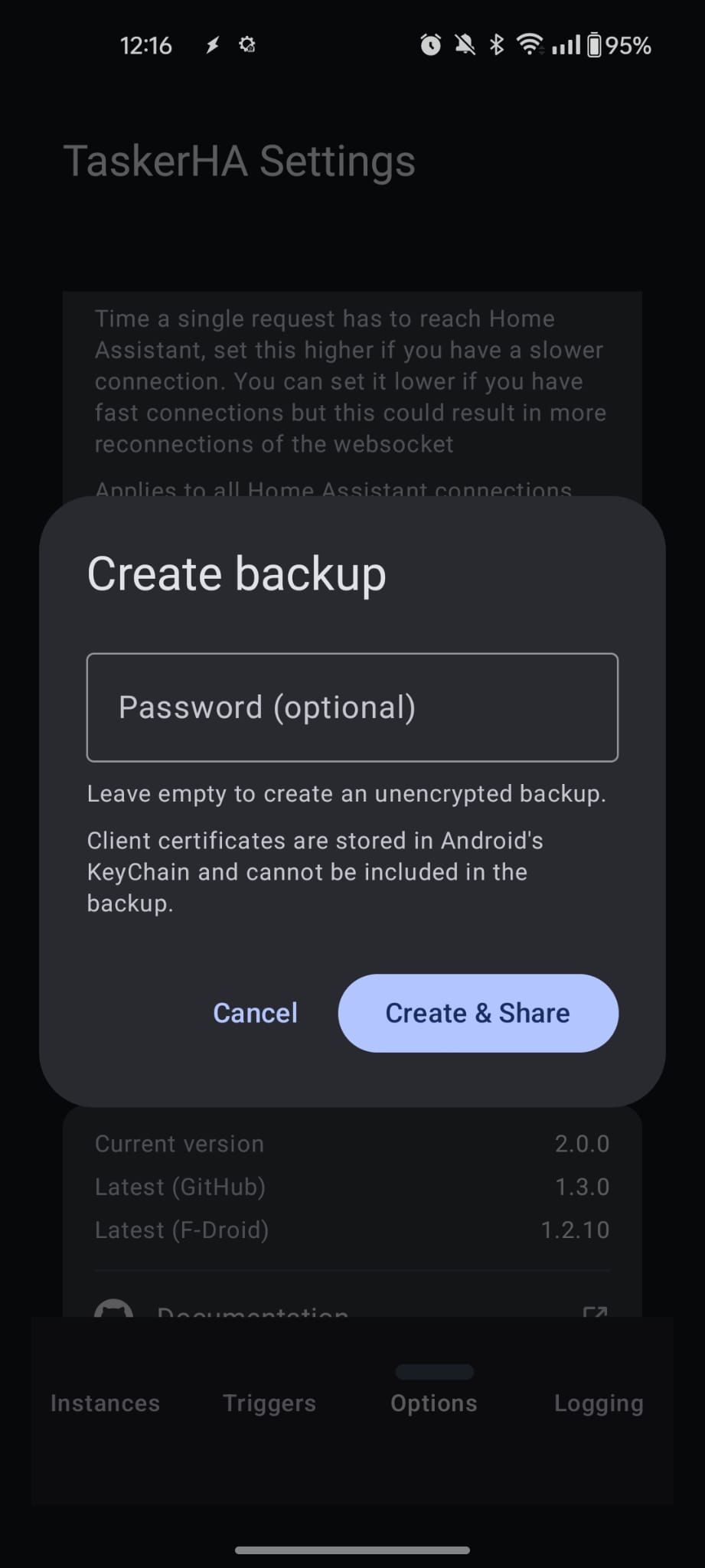
The backup is saved as a .taskerha_backup file.
Restoring a backup
From inside the app
- Open the TaskerHA app.
- Go to the Options tab.
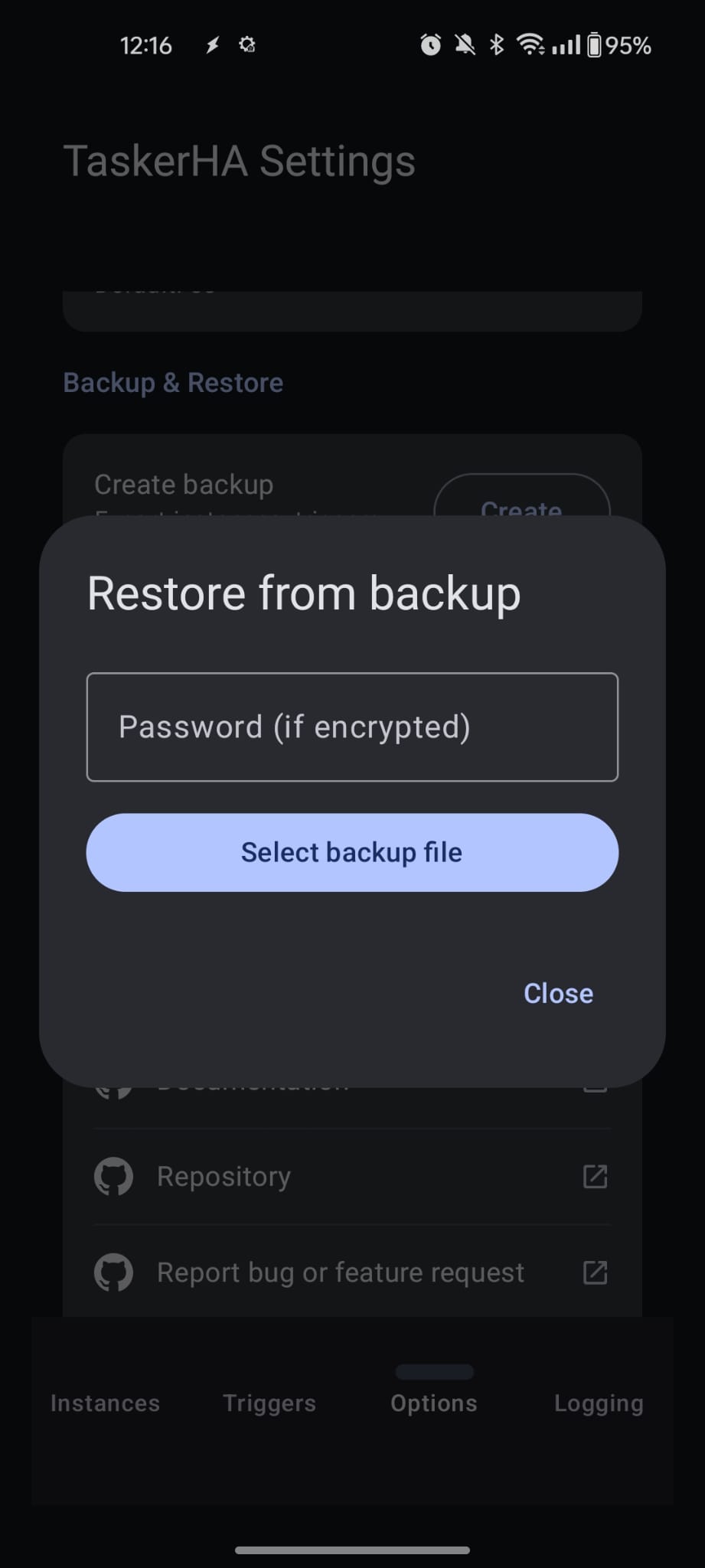
- Under Backup & Restore, tap Restore.
- If the backup is encrypted, enter the password.
- Tap Select backup file and pick the
.taskerha_backupfile.
By tapping the file directly
If you receive the backup file in WhatsApp, Gmail, a file manager, or any other app, you can tap the file to open it directly in TaskerHA.
- Android will offer to open the file with TaskerHA.
- The restore dialog will appear automatically with the file already loaded.
- Enter the password if the backup is encrypted, then tap Restore.
TIP
After a successful restore, restart the app so the WebSocket service and all in-memory state pick up the new settings.
Encryption
When you enter a password, the backup file is encrypted using AES-256-GCM — a modern authenticated encryption standard that guarantees both confidentiality and integrity.
The password is never stored anywhere. Instead it is used to derive a 256-bit encryption key using PBKDF2-HMAC-SHA256 with 100 000 iterations and a randomly generated 16-byte salt. Each backup file gets a unique salt and IV, so two backups made with the same password produce different ciphertext.
| Parameter | Value |
|---|---|
| Cipher | AES-256-GCM |
| Key derivation | PBKDF2-HMAC-SHA256 |
| Iterations | 100 000 |
| Salt | 16 bytes (random per backup) |
| IV | 12 bytes (random per backup) |
| Authentication tag | 128 bits |
The file format is:
[ 1 byte: version marker (0x01) ]
[ 16 bytes: salt ]
[ 12 bytes: IV ]
[ remaining bytes: AES-256-GCM ciphertext + 16-byte auth tag ]
An unencrypted backup is a plain JSON file — you can open it in any text editor to inspect its contents.
WARNING
If you lose the password there is no way to recover the backup. Keep the password safe or use an unencrypted backup if you do not need confidentiality.